How to download a GPX file from Strava, Garmin, Suunto, Apple Watch and more
A GPX file is the route line from your activity. You can use it to create a poster,
keep a backup of a race, or move a route between apps. The exact export button is
different on every platform, so this guide gives you the shortest path for each one.
For a poster, choose a GPS activity that was recorded outdoors. Indoor runs, treadmill
activities, pool swims, and manually entered workouts usually do not contain a usable
route line. If a platform offers several formats, GPX is the simplest option for maps.
FIT or TCX can also be useful, but they are more focused on training data such as heart
rate, cadence, power, and device information.
Quick tip:
if an app does not offer GPX export, sync the activity to Strava or another service
that does, then export the GPX from there.
Strava
Strava is usually the easiest place to download a GPX file, but the export option is
available on the website, not only inside the mobile app.
Open strava.com in a browser and sign in.
Open the activity you want to use.
Click the three-dot menu on the activity page.
Choose Export GPX.
Your browser downloads a file ending in .gpx.
If the activity has no GPS data, the downloaded GPX may be empty or unusable.
Garmin Connect
Garmin Connect can export a GPX file from an individual outdoor activity. Use the web
version for the most reliable export controls.
Open connect.garmin.com and sign in.
Go to Activities and open the activity.
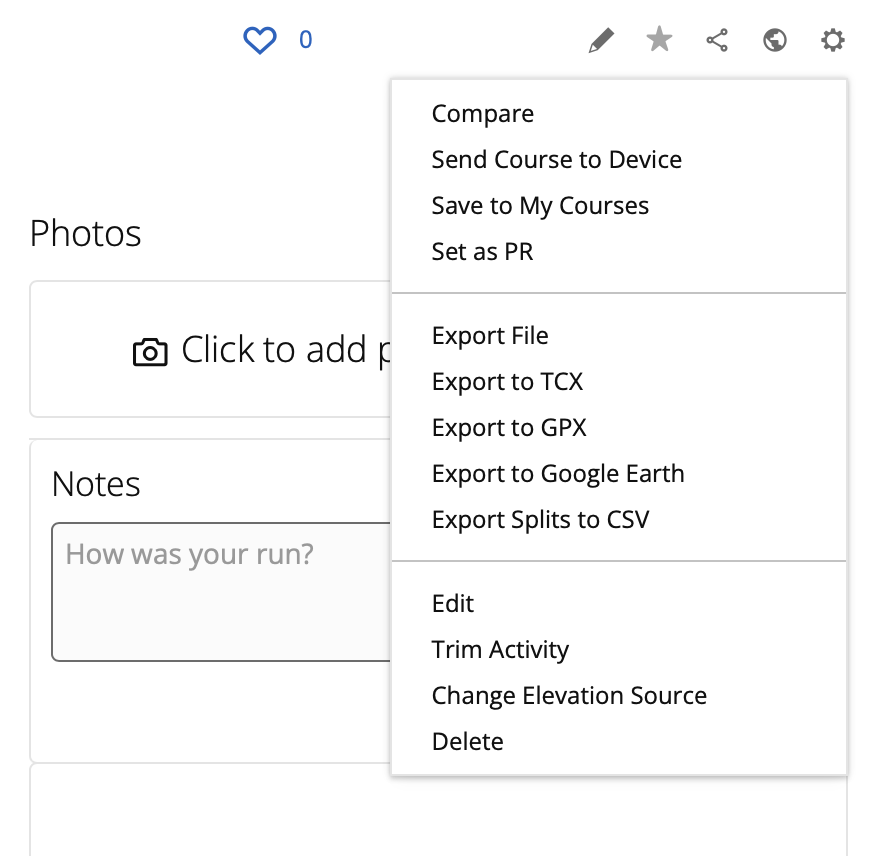
Click the settings or gear icon in the top-right area of the activity page.
Choose Export to GPX.
Save the downloaded .gpx file.
In Garmin Connect, open the activity menu and choose Export to GPX.
If you only see FIT, TCX, or CSV options, choose FIT or TCX and convert it to GPX with
a trusted converter.
Suunto
Suunto exports are handled from the Suunto app on iOS and Android. Suunto's own support
article confirms that GPX files can be exported from the app.
Open the Suunto app.
Open your workout or route.
Tap the share or more-options icon.
Choose Export as GPX or a similar GPX export option.
Save the file to Files, Google Drive, Dropbox, or send it to yourself.
Apple does not provide a simple built-in GPX download button for a single workout in
the Fitness app. The easiest route is to use a third-party exporter app.
Install an iPhone app that can read Apple Health workouts and export GPX, such as
GPX Export
or
GPX Route Exporter.
Allow the app to read workout and route data from Apple Health.
Open the outdoor workout in that app.
Choose Export or Share, then select GPX.
Save the GPX file or upload it directly to The Next Finish.
Huawei Health
Huawei Health GPX export depends on your region, phone, and app version. Many users
will find that direct GPX export is limited or missing, so the most reliable method is
to look for another export format first.
Open Huawei Health and check whether your activity has a share or export option.
If GPX is available, choose it and save the file.
If GPX is not available, look for FIT or TCX export options.
Convert the exported file to GPX with a trusted converter if needed.
If direct export is not available in your region, you may need a third-party bridge app
or a FIT/TCX workflow before converting to GPX.
Komoot
Komoot is useful for planned routes and completed tours. For a clean poster route,
export the GPX from the web version.
Open komoot.com and sign in.
Open the planned route or completed tour.
Look for the download, export, or more-options menu.
Choose Download GPX or Export GPX.
Save the file to your computer.
Some Komoot export features can depend on your purchased regions or account settings.
Ride with GPS
Ride with GPS has strong route export tools and is especially common for cycling,
gravel, and bikepacking routes.
Open ridewithgps.com and sign in.
Open your route or ride.
Click Export.
Select GPX Track for the most useful route line.
Download the file.
If you see several GPX options, choose the track version for a poster. Route versions
can contain fewer points because they are designed for navigation prompts.
AllTrails
AllTrails can be helpful for hikes and trail runs, but GPX download availability may
depend on the page, account type, and current AllTrails features.
Open alltrails.com and sign in.
Open the trail map, custom map, or completed activity.
Look for the overflow menu, download button, or share/export control.
Select Download GPX if it is available.
Save the file and check that it contains the correct route before uploading.
If GPX is not available for that map, record the activity in another platform that
gives you a GPX export.
Polar Flow
Polar Flow can export individual training sessions from the web service. GPX is best
for outdoor sessions with GPS.
Open flow.polar.com and sign in.
Open Diary or Training history.
Select the session you want to export.
Use the export option and choose GPX when available.
Download the file.
If GPX is not offered, export TCX and convert it.
Wahoo
Wahoo activities are commonly exported through the Wahoo app or shared to route
services like Komoot or Ride with GPS.
Open the Wahoo app.
Open the activity history and choose the workout.
Tap the share or export option.
Choose GPX if the app offers it.
If needed, export from the connected route platform instead.
What to do after downloading the GPX
Check that the file name ends with .gpx.
Use the activity you actually want on the poster, not a planned route, unless you prefer the official course line.
Upload the GPX to The Next Finish.
Choose your map style, format, title, date, and route line design.